You May Be Corrupting Your Data Without Realizing It in Server-Side GA4 Tracking
You’ve completed your server-side GA4 setup. Your server container is running, the FPID cookie is properly configured, and data is flowing into BigQuery. Everything seems under control… but it isn’t.
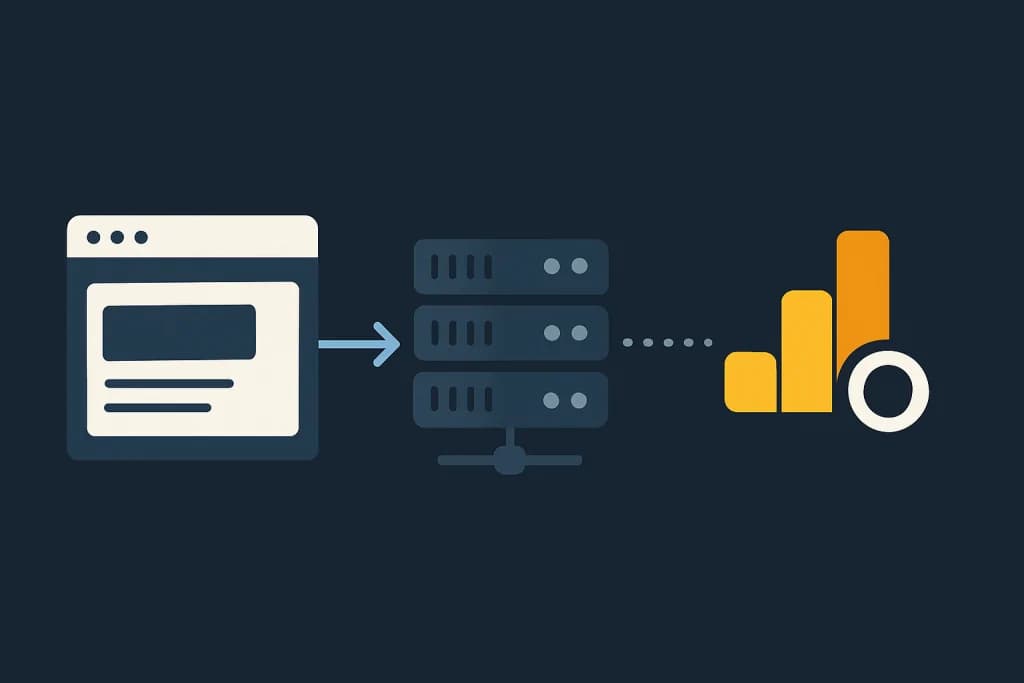
You’ve completed your server-side GA4 setup.
Your server container is running, the FPID cookie is properly configured, and data is flowing into BigQuery. Everything seems under control… but it isn’t.

When you take a closer look at data integrity, things start to break:
User counts are higher than expected
Sessions are inflated
Most traffic sources appear as “unattributed”
And while you think “I did everything right,” GA4 might be telling a completely different story in the background.
The Hidden Culprit: GA4’s Automatic Events
When you first set up GA4, you may have noticed that some events come automatically.
Events like scroll, click, and file_download don’t require extra configuration.
Sounds great, right?
However, in a server-side tracking setup, this “convenience” can become very costly.
Because these automatic events are sent directly from the browser via gtag.js. They are unaware of your server-side identity system (like FPID). Each one generates its own client_id and sends it to GA4.
The result?
The same user and the same session can be counted as two different users in GA4.

Why Is This a Problem?
Server-side tracking is meant to give you full control over your data.
Your goal is to handle identity matching on the server and standardize your data there.
But GA4’s automatic events bypass this system.
And this leads to:
Users being counted twice (client_id ≠ FPID)
Sessions being split (same visit, different session_id values)
Traffic sources breaking (UTM parameters lose context)
This results in misleading reports, incorrect decisions, and wasted advertising budgets.
What Should You Do?
If you want to maintain a clean server-side structure and make GA4 work for your system, follow these steps:
1. Disable GA4 Automatic Events
If you enabled automatic events during setup, turn them off.
2. Manage All Events Manually
Whether it’s scroll, click, or form submission — trigger everything via GTM and send it to the server-side container.
3. Monitor Data in BigQuery
Analyze user_pseudo_id and session_id values. Sudden spikes may indicate silently triggered automatic client_id events.
4. Avoid Broad Triggers in Server-Side GTM
Do not use patterns like event name matches .*
Instead, define events clearly and strictly (e.g. ^purchase$, ^form_submit$).
Important Note
If you send GA4 events both from the browser and server-side at the same time, they will be sent with different client IDs.
Browser-side → uses
_gacookie (client_id)Server-side → uses server-managed IDs (e.g., FPID)
Because of this mismatch, GA4 may fail to associate sessions with the same user.
As a result, sessions may appear as “unassigned” or “not set.”
Conclusion
Setting up GA4 with server-side tracking is a powerful step toward improving data quality.
However, for the system to work properly, you must maintain full control over the process.
Small details like:
Automatic events
Double counting
Poorly defined triggers
can grow into major problems that distort your reports over time.
By applying the steps shared in this article, you can:
Centralize identity management
Prevent data inflation
Get truly reliable insights from GA4
Remember:
Server-side tracking is not just a technical choice — it’s about building a clean and reliable data foundation for better decision-making.